Picture this: you are trying to switch between a heavy mobile game and your messaging app, but your phone completely freezes. Or maybe you just bought a new laptop, and you are staring at a spec sheet filled with confusing acronyms, wondering why 16GB of one thing costs less than 512GB of something else. We have all experienced this frustration. Buying or troubleshooting electronics often feels like you need to learn a completely new language just to get exactly what you want.
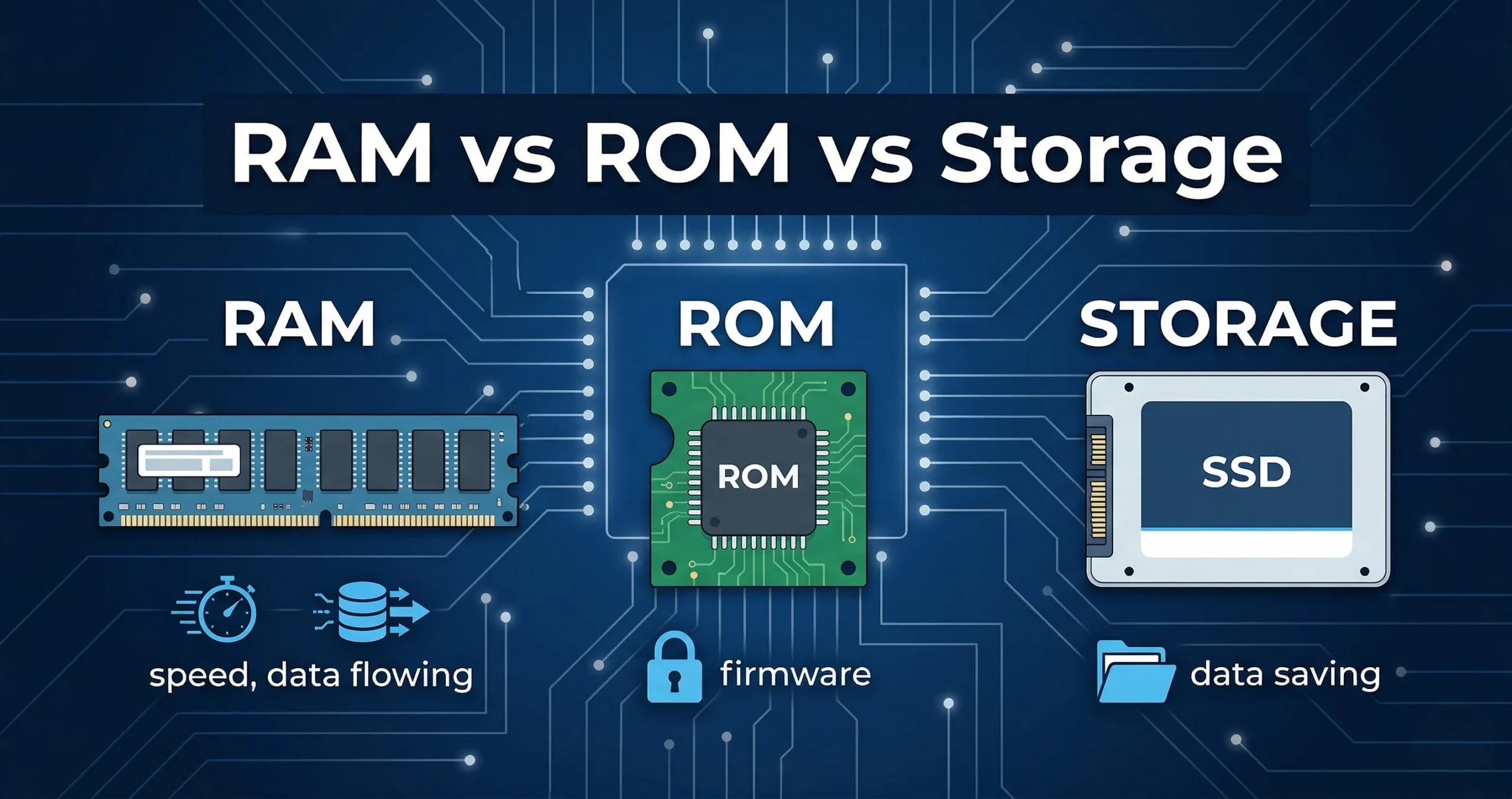
At the heart of this technical confusion are three key components that make your devices tick. First, we have your device’s temporary workspace, which is lightning-fast but forgets everything when the power goes off. Then, we have the permanent instructions built deeply into the device so it knows how to start up. Finally, there is the massive digital trunk space where you keep your personal photos, downloaded apps, and important documents for years.
If you want to stop feeling lost when tech terms get thrown around by salespeople or repair technicians, you are in the exact right place. In this guide, we will break down What is RAM and ROM in simple terms, explain the core RAM vs ROM difference, and clear up the overarching RAM vs ROM vs Storage difference. By the end of this read, you will understand exactly how these parts work together to power your favorite devices smoothly.
What is RAM and ROM?
To truly understand how your computer or smartphone operates, you first need to look at its memory systems. Memory is not just one single thing; it is divided into specific roles.
Understanding RAM (Random Access Memory)
RAM is your device’s short-term memory. It is a super-fast workspace where your computer places the data it is actively using right now. When you open a web browser, play a video game, or edit a text document, the processor loads that specific task into the RAM.
Because RAM is so incredibly fast, your processor can grab information from it instantly without any lag. However, RAM is “volatile.” This means it only holds onto information while the device has power. If your computer crashes or you turn it off, everything stored in the RAM is wiped completely clean. This is why you lose your unsaved work when the power suddenly goes out.
Understanding ROM (Read-Only Memory)
ROM is your device’s permanent memory. Unlike RAM, the data stored inside ROM is not meant to be changed easily or frequently by the user. It contains the essential, foundational instructions that tell your device how to operate.
Think of ROM as the basic instincts of your computer. When you press the power button, the processor looks at the ROM to figure out how to wake up the screen, check the keyboard, and start loading your operating system. ROM is “non-volatile,” meaning it keeps its data safely stored even when the device is completely powered down and unplugged.
RAM vs ROM Difference
Comparing these two types of memory helps paint a clearer picture of why your device needs both to function. Below is a simple table that breaks down the main distinctions.
| Feature | RAM (Random Access Memory) | ROM (Read-Only Memory) |
| Data Retention | Volatile (loses data when powered off) | Non-volatile (keeps data without power) |
| Speed | Extremely fast | Slower compared to RAM |
| Primary Function | Holds active apps and current tasks | Holds startup instructions (firmware) |
| Capacity | Usually higher (e.g., 8GB to 32GB) | Usually very low (e.g., 4MB to 8MB) |
| User Access | Easily read and written by the user | Mostly read-only, hard to modify |
| Physical Appearance | Long, thin rectangular sticks | Small chips soldered to the motherboard |
The main RAM vs ROM difference comes down to flexibility versus permanence. RAM is a highly flexible, constantly changing environment. Data moves in and out of it thousands of times a second as you switch between apps. ROM, on the other hand, is stubborn and fixed. It is designed to safely guard the core startup codes so that no matter what happens to your active files, the computer always remembers how to turn itself on.
When people experience a slow computer, the RAM vs ROM difference is often the key to fixing it. Upgrading your RAM gives you more active workspace, making the computer faster. You almost never upgrade or worry about your ROM unless you are doing deep, technical motherboard updates.
Types of RAM and ROM
Not all memory chips are manufactured the same way. Over the years, technology has evolved, giving us different variations of memory to suit different tasks. Understanding the Types of RAM and ROM can help you make better hardware choices.
Types of RAM
There are two main categories of RAM that work inside your devices:
- SRAM (Static RAM): This is the fastest type of RAM available, but it is also the most expensive to manufacture. Because of the high cost, it is usually used in very small amounts directly inside the computer’s processor (often called CPU cache). It holds the absolute most critical data the processor needs right this second.
- DRAM (Dynamic RAM): This is the standard RAM you buy for a computer. It is cheaper to make and can hold much more data than SRAM. However, it needs to be constantly refreshed with electrical pulses to keep its data alive. When you see a laptop advertised with “16GB of DDR4 Memory,” they are talking about DRAM.
Types of ROM
ROM has also evolved significantly from the early days of computing. Here are the primary variations:
- PROM (Programmable ROM): This chip is manufactured completely blank. A programmer writes data to it once using special equipment. Once the data is written, it is locked forever and cannot be changed or erased.
- EPROM (Erasable Programmable ROM): This type of chip improved upon PROM because it can actually be erased and rewritten. However, to erase it, the chip has to be removed from the computer and exposed to strong ultraviolet (UV) light for several minutes.
- EEPROM (Electrically Erasable Programmable ROM): This is the modern standard used in almost all devices today. It can be erased and rewritten electronically without removing it from the motherboard. When your computer downloads a “BIOS update” or “Firmware update,” it is writing new data to the EEPROM.
RAM vs ROM vs Storage Difference
Now that we understand memory, we have to tackle the biggest source of confusion for most consumers: storage. You will often see tech specs talking about a 16GB phone vs a 128GB phone. That larger number is your storage.
To clearly understand the RAM vs ROM vs Storage difference, imagine you are working in an office.
Storage is your massive filing cabinet. This is where you keep all your documents, photos, videos, and downloaded applications. It holds a massive amount of stuff, and it keeps everything safe even when you leave the office and turn off the lights (non-volatile). Common examples include Hard Disk Drives (HDDs) and Solid State Drives (SSDs).
RAM is your physical desk surface. When you need to work on a specific file, you take it out of the filing cabinet and put it on your desk. Your desk is small, but everything on it is within arm’s reach for immediate use. If your desk is too small (low RAM), you can only work on one or two files at a time. If you have a huge desk (high RAM), you can have ten files spread out at once without slowing down. But at the end of the day, the desk gets wiped clean.
ROM is the instruction manual for the office. It sits in a locked glass box on the wall. You cannot easily change the words in the manual. It simply tells the security guard how to unlock the front doors, turn on the lights, and start the day.
Many smartphone manufacturers confuse buyers by using the word “ROM” to describe internal storage. If an advertisement says a phone has “256GB ROM,” they are actually talking about flash storage, not true Read-Only Memory. True ROM is very small and strictly used for system startup.
Which one is more important?
A common question is whether RAM, ROM, or Storage is the most vital component. The truth is that they are all equally important because they operate as a unified team. Your device physically cannot function if any one of these three pieces is missing.
However, from a user-experience perspective, RAM and Storage are the ones you need to care about most when spending money.
If your goal is to store thousands of high-resolution photos, download heavy software, or keep an entire library of movies on your laptop, you need to prioritize Storage. A larger SSD means you will not have to constantly delete old files to make room for new ones.
If your goal is performance, you need to prioritize RAM. If you like to have thirty web browser tabs open while streaming music and editing a video, you need a large amount of RAM. Without enough RAM, your computer will try to use your slower Storage drive as a temporary workspace, which causes severe lagging, freezing, and stuttering.
ROM simply exists in the background doing its job. You will never need to go to a store and ask for “more ROM” to make your computer faster.
Real-life examples and use cases
To fully grasp the RAM vs ROM difference and how storage plays its part, let us walk through a few common daily scenarios.
Scenario 1: Starting Up Your Laptop
You press the power button on your laptop. First, the ROM activates. It sends a tiny, hardcoded sequence of instructions to check if the battery, keyboard, and screen are working. Once the ROM confirms the hardware is safe, it looks at your Storage drive to find Windows or macOS. The operating system is then lifted out of Storage and loaded into the RAM. Once it is in the RAM, your screen lights up, and your desktop appears ready for use.
Scenario 2: Playing a Heavy Mobile Game
You tap the icon for a large, graphically intense mobile game. Your phone reads the game files sitting permanently in your Storage. Because playing directly from storage would be incredibly laggy, the phone copies the current level’s graphics and sounds into the RAM. As you play, the game runs buttery smooth because the processor is rapidly reading the RAM. When you close the game, those files are cleared out of the RAM, freeing up the “desk space” for the next app you open.
Scenario 3: Taking a Photograph
You open your camera app (loading it into RAM). You point the camera and snap a picture of a beautiful sunset. In the split second after you press the button, the image is held temporarily in the RAM. When you click “save,” the phone writes that image file permanently to your Storage drive. Now, even if your phone battery completely dies, the photo is safe in the storage vault.
Frequently Asked Questions (FAQs)
Does adding more RAM increase my storage space?
No, RAM and storage serve entirely different purposes. Adding more RAM increases your device’s ability to multitask and run heavy programs smoothly. It does not give you more room to save photos, videos, or files. You need a larger SSD or hard drive to increase your physical storage limits.
Can I upgrade my ROM?
Physically, no. The ROM chip is heavily integrated or soldered onto your device’s motherboard. However, you can update the software written on an EEPROM chip through a process called “flashing the BIOS” or updating your firmware. This is usually only done to fix major bugs or support newly released hardware.
Why do smartphone companies say “128GB ROM” when it is actually storage?
This is an old marketing habit that has stuck around. Early smartphones used a type of flash memory that evolved from ROM technology to store the operating system and user files. Over time, marketers kept using the term “ROM” to differentiate internal storage from removable SD cards. Technically speaking, they are referring to non-volatile flash storage, not traditional Read-Only Memory.
Why does my phone say “Storage Full” when I am just trying to open an app?
Sometimes devices need a little bit of empty storage space to act as an “overflow” area when your RAM gets completely full. If your storage is 100% full, the RAM has nowhere to offload temporary files, causing the phone to freeze up and display error messages. Clearing out some old videos usually fixes this.
Will I lose my files if my RAM gets full?
No, your files are completely safe. If your RAM gets full, your device will simply slow down significantly as it tries to juggle the active tasks. Your actual saved files (like word documents and pictures) are securely locked away in your storage drive, completely unaffected by how full your RAM is.
Conclusion
You now have a solid grasp of how memory and storage work behind the scenes to keep your electronics running smoothly. We covered the distinct jobs of your temporary active workspace, the permanent instructions that wake up your hardware, and the massive vaults where your digital life lives. The next time you shop for a new smartphone or troubleshoot a lagging computer, you will know exactly what those technical specifications mean. You are officially equipped to make smarter tech choices and understand your devices better than the average user.
Leave a Reply